
Fixing Errors in a GitHub Pull Request
When I submitted my first contribution to an open source project, my pull request unexpectedly failed…and it turned out to be a great learning opportunity! In this post we’ll go through the steps of diagnosing and fixing this specific failure, which will teach us a bit about GitHub Actions, linting, and how to investigate pull request problems.
The Unexpected Error
First, let’s set the scene: after reading an open source project’s Contributing doc, I forked the repository, made a simple change that fixed a broken link in the project’s README, and then created a pull request with those changes. Eventually I received a notification that the pull request had been updated, which is when I saw this:
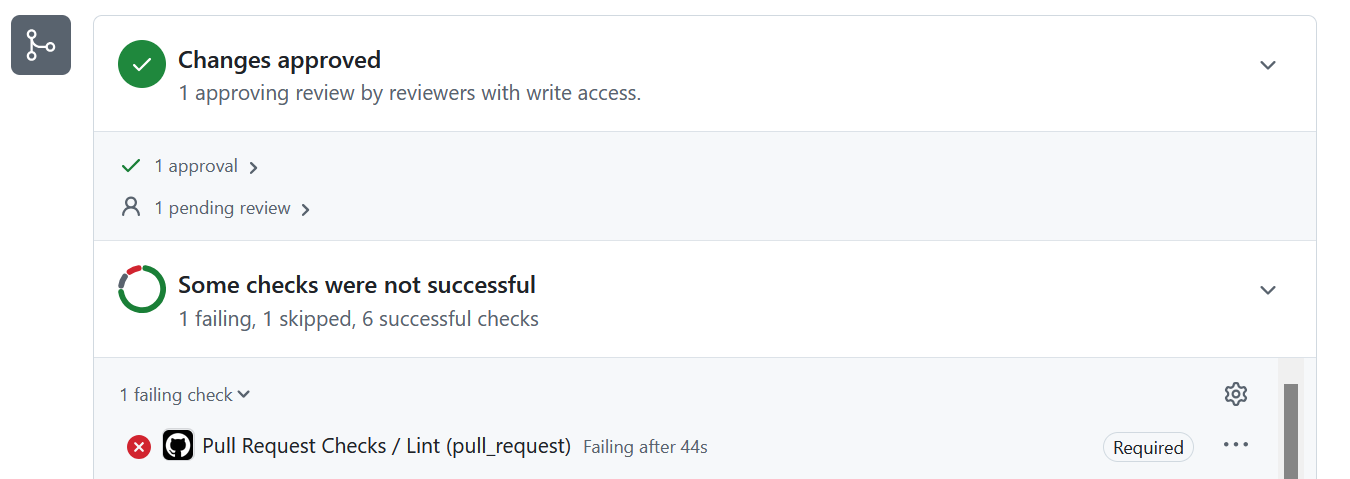
My pull request was approved by the owner of the project, but it failed some of the required checks. In case this is your first time seeing something like this, some quick explanations are in order. If you have a project on GitHub, you can use GitHub Actions to automate aspects of your build pipeline, such as automatically running tests against pull requests. That’s exactly what has happened here, and my pull request didn’t pass one of those tests.
Workflows
Let’s see if we can get some more information about this failed test. If we click the ellipses to the right of the failed check, we’ll get the option to “View details”, which will take us to this page:
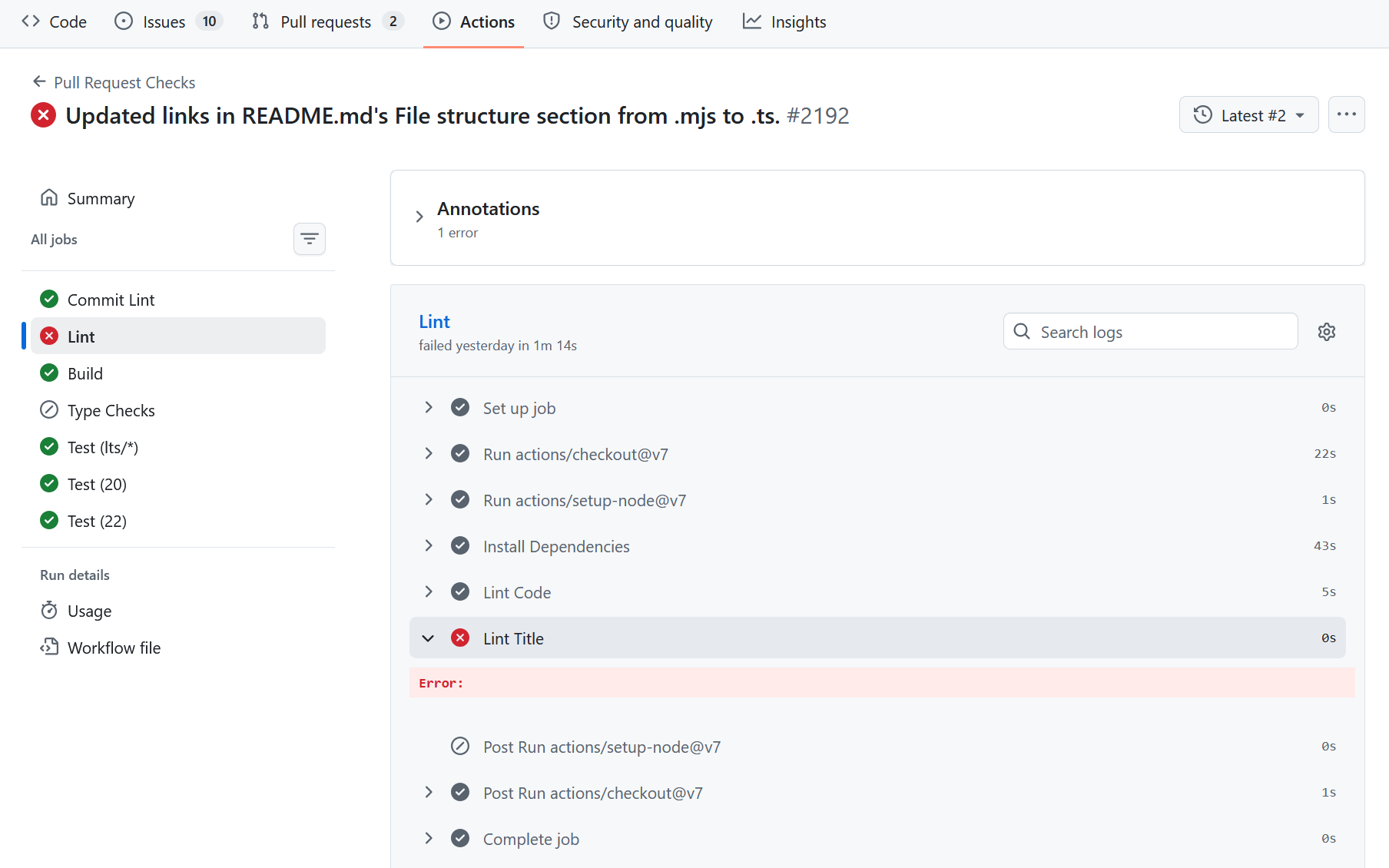
This screen shows a summary of the workflow run that occurred after our pull request was approved. If you’re unfamiliar with workflows, you can basically think of them as a series of commands that get run in sequence. It looks like everything went fine with the run until it reached the “Lint Title” section.
Unfortunately, the error message seems to be empty, meaning we’ll have to dig deeper to figure out what went wrong. We know the name of the section where the failure occurred, so let’s see if we can find out what commands get run in that section by looking at the actual workflow file. We can check that out by clicking “Workflow file” in the lower left.
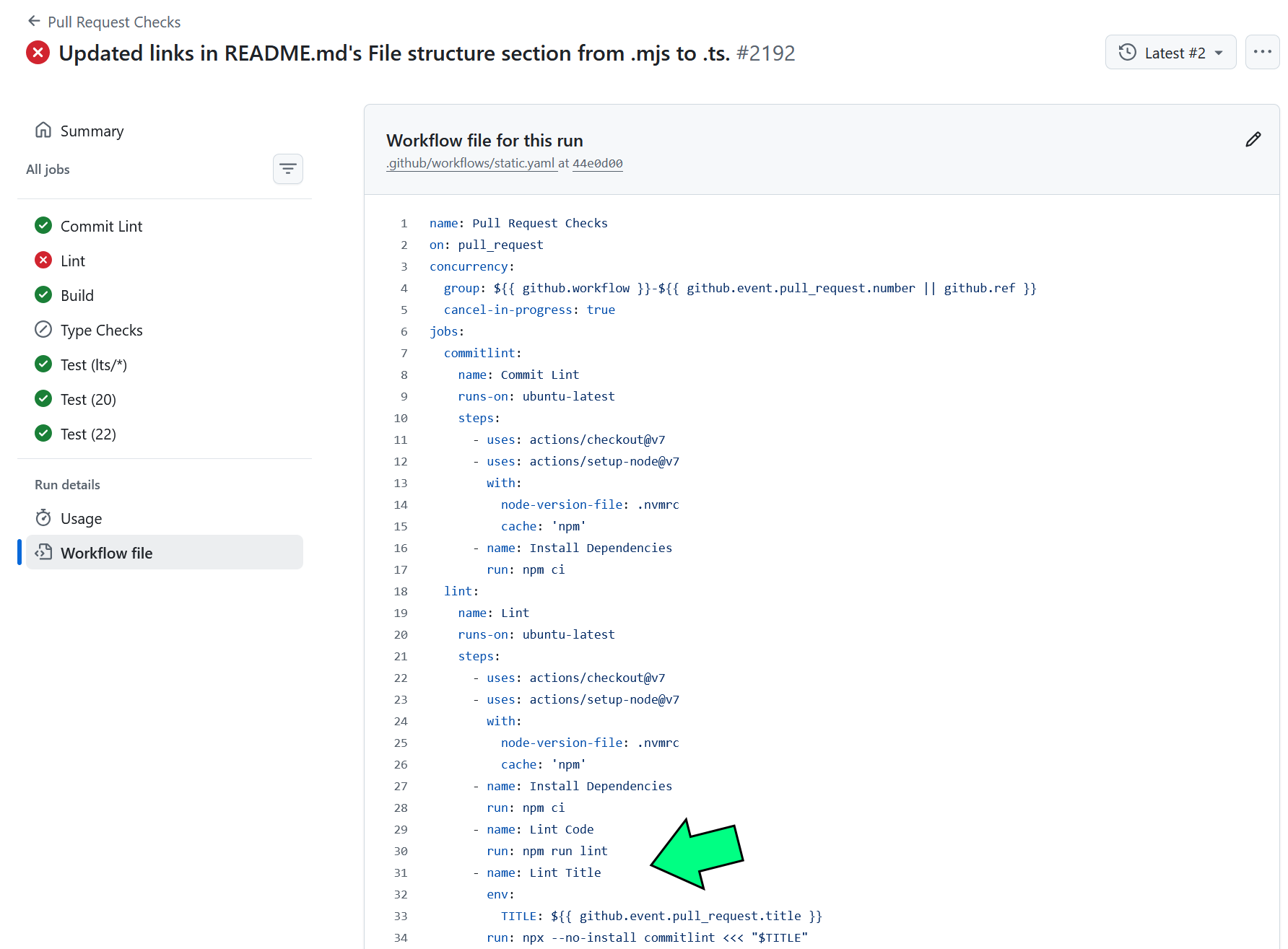
The full workflow contains over 100 lines, but in this screen capture we can see the part that we care about: Lint Title. Let’s give it our full attention:
- name: Lint Title
	env:
		TITLE: ${{ github.event.pull_request.title }}
	run: npx --no-install commitlint <<< "$TITLE"
I wasn’t immediately certain what every single part of this was doing, but with some web searching I was able to verify what I intuited and learn what I hadn’t. First, an environment variable named TITLE is being initialized with the title of our pull request. After that, commitlint is being run, and the value of TITLE is being fed into commitlint as input. The npx is just a way of running the commitlint package, and the flag --no-install is a deprecated form of --no, which suppresses a prompt for input.
So in summary, a program called commitlint is doing something — presumably linting! — based on the title of our pull request.
Linting
Linting is the process of analyzing text — usually code — to ensure that it meets certain standards. Linting can be used to check functional aspects of code like whether it will actually compile, but it can also be used to enforce a project’s stylistic standards related to things like line length, spacing, naming conventions, etc.
If the title of our pull request is being linted, we’ll need to know the rules it’s being judged by. According to the commitlint documentation, the configuration gets retrieved from one of several different files, all of which have “commitlint” in the filename. It’s common for configuration files to be stored in a project’s root directory, so let’s check to see if one exists:
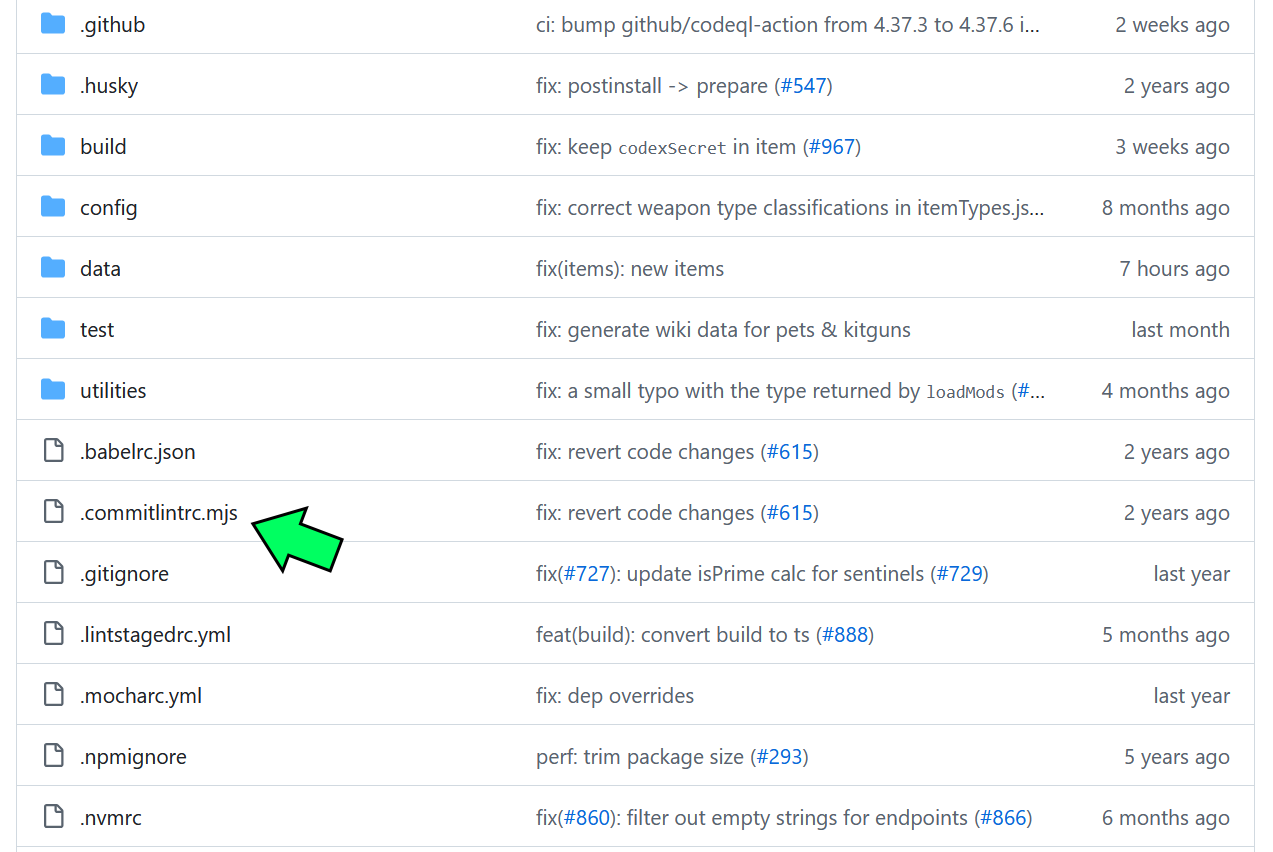
Sure enough, a file named .commitlintrc.mjs is right where we’d expect it to be. The file contains only 10 lines:
export default {
	"extends": [
		"@commitlint/config-conventional"
	],
	"rules": {
		"body-max-line-length": [
			0
		]
	}
}
According to that configuration documentation, it looks like this config overrides one rule by setting body-max-line-length to 0, but other than that it uses the conventions in @commitlint/config-conventional. Thankfully, the top search result for the latter term is the npm page containing its documentation, which explains all of the rules our pull request title is being checked against. Armed with these rules, we should be able to figure out where the problems are happening. The title of the pull request was:
Updated links in README.md's File structure section from .mjs to .ts.
As an exercise, I encourage you to go through these rules on your own to identify each way this title is breaking them. While the rules page contains multiple references and links to Conventional Commits, be aware that @commitlint/config-conventional contains additional rules that aren’t part of Conventional Commits. That said, the Conventional Commits page is quite helpful since it explains some of the terminology used in the rules.
So as you may have discovered, our title fails most of the rules related to type and subject. The title should start with one of several pre-approved types, then there should be a colon, then there should be consistent capitalization in accordance with the subject-case rule, and finally the title should NOT end with a period. We did successfully abide by the body-max-line-length: 0 override by not having any body, though!
Fixing the Pull Request Title
Now that we know what rules we need to follow, we can fix the title of our pull request. But before we do that, there’s one more thing we might want to consider doing: taking a quick look at successful pull requests in this project. By doing this we’ll get a better idea of what the norms are for this project, some of which may not be hard-coded into linting rules. To do this, we go to the project’s page on GitHub, then click the “Pull requests” tab towards the top of the page. The Pull Requests page will generally start with a filter that only shows open pull requests, but we’ll change it to is:pr state:merged, which will allow us to see closed pull requests that were successfully merged into the project.
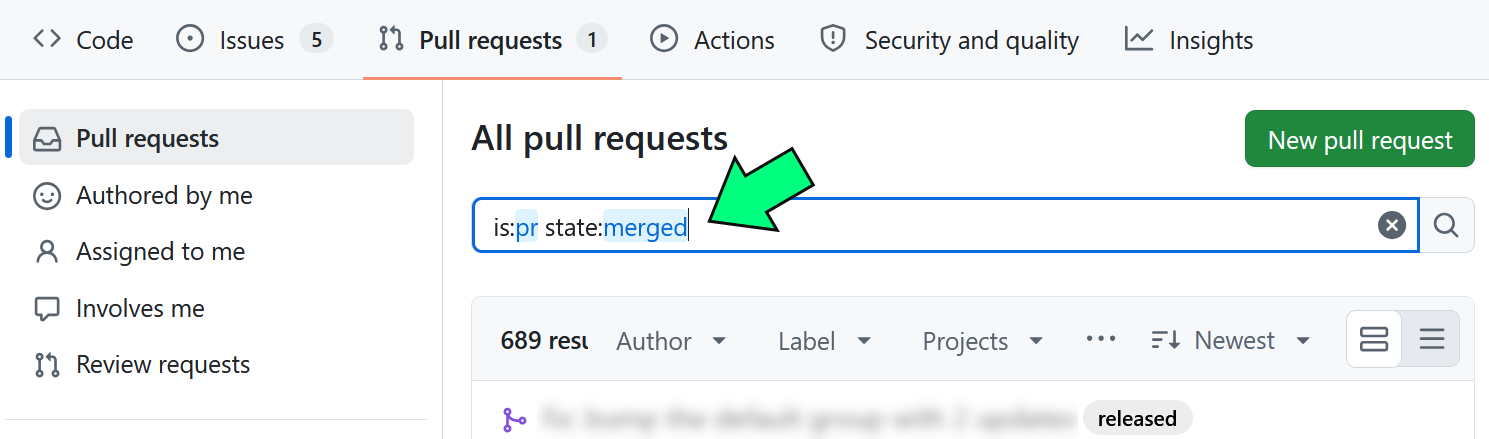
For example, I wasn’t quite sure whether I should start my new title with fix or docs; the change was in a document, but it was fixing a broken link. By browsing similar pull requests, I noticed that they seemed to start with docs(readme), which gave me a clear pattern to follow.
Once we’re ready, we can return to the page for our specific pull request. Right after the pull request’s title there’s a number and a pencil icon; by clicking the pencil icon, we can edit the name of our pull request.

The new and improved title of the pull request is:
docs(readme): file structure section .mjs -> .ts
This title meets all of the requirements. So why aren’t we done yet? Why are there so many words below this? It’s because there’s one additional problem that I initially missed. If you looked over some of the documentation I linked, maybe you caught it?
Fixing the Commit Message
The primary purpose of commitlint is to lint commit messages. Yes, the title of our pull request is being fed into commitlint, and it is getting linted. But it’s not the only thing getting linted; commitlint is also linting the Git commit message associated with our pull request. And as you might expect, our initial commit message — which was identical to the pull request title — did not meet the linter’s standards.
Luckily, we’ve already done most of the work. We know what to change the commit message to, now we just need to change it. Because the commit in our pull request is the most recent commit we made in our forked repository, we can update the message by following these steps:
- If we don’t already have one, clone a local copy of our fork.
- Open a local command window to the base directory of our local repository.
- If our changes were in a branch, we want to be working in that branch by using
git checkout BRANCH-NAME-HERE. - Enter the command
git commit --amend. - A text editor will open. In the text editor, we edit our commit message.
- Save and then close the editor. The commit message has now been changed locally.
- To push this change to our remote fork, use the command
git push --force-with-lease origin BRANCH-NAME-HERE.- If you aren’t using a branch or don’t know the name of your branch, use
git branch --allfirst; the text beside the asterisk is what you’ll type instead ofBRANCH-NAME-HERE.
- If you aren’t using a branch or don’t know the name of your branch, use
Resolution
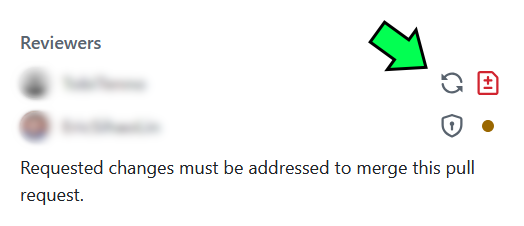
After completing these steps, I went back to GitHub to see that my pull request already contained the updated commit message. I gave everything one last double-check, then I requested another review of my pull request by clicking the refresh icon in the upper-right corner of the pull request page.
Later in the day my changes were approved, which triggered a new workflow run. All of the checks passed, and my change was merged into the official project. I had now successfully contributed to an open source project!

When I initially created my pull request, I had only intended to make a simple update to some outdated documentation. But by trying to contribute even in this basic way, I ended up facing unexpected challenges and learning a great deal. I hope that by sharing some of that process in this post, it might help someone to find a solution to a similar issue they’re facing.